Alexsys™
Alexsys™ is a conversational programming assistant for CNC milling machines. It combines the ease of classic conversational programming with the visual assistance of simple CAD, so you can create and verify parts directly at the CNC control.
Summary
To create a part in Alexsys™, define your stock, add an operation, enter the part dimensions, select a tool and cutting depth, simulate the cycle, then touch off the part and press Cycle Start.
Have the following information ready:
Follow your standard shop safety procedures and verify the setup for your specific CNC milling machine before cutting.
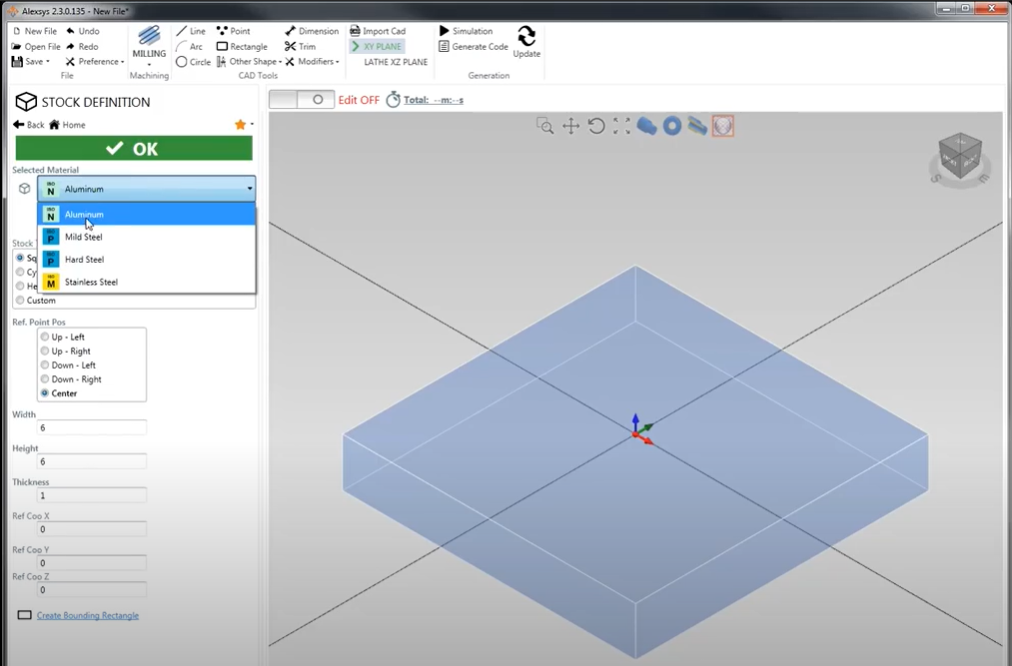
Start by defining the material and workpiece that you will use.
Accurate stock information helps Alexsys™ display the part and simulate the operation correctly.
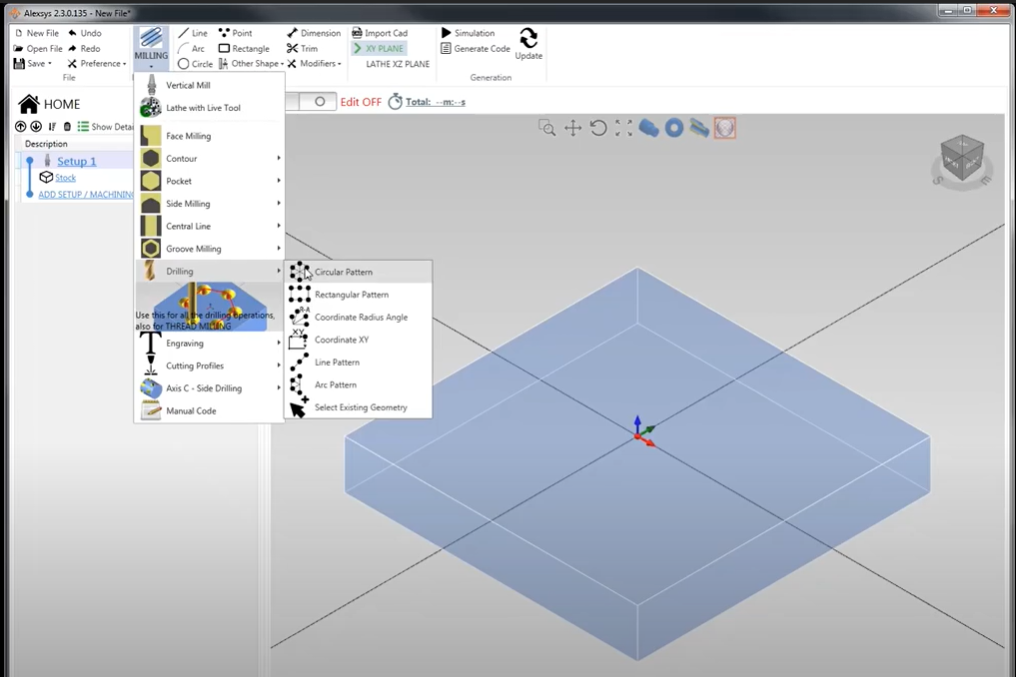
Add the machining operation you want to perform.
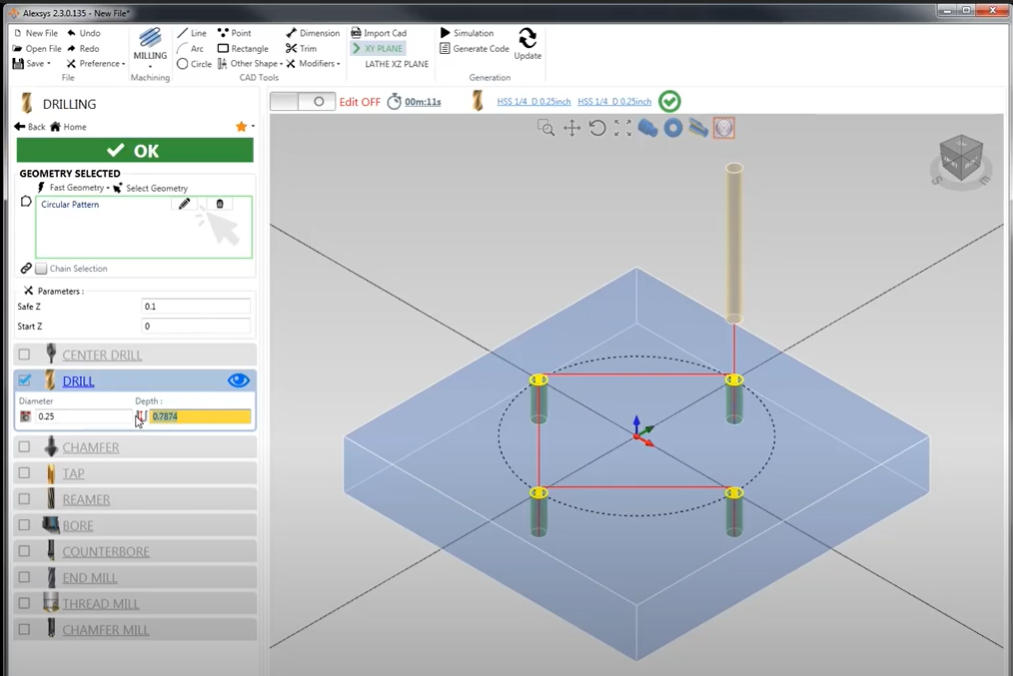
For a drilling job, use the drilling operation and continue to the hole settings.
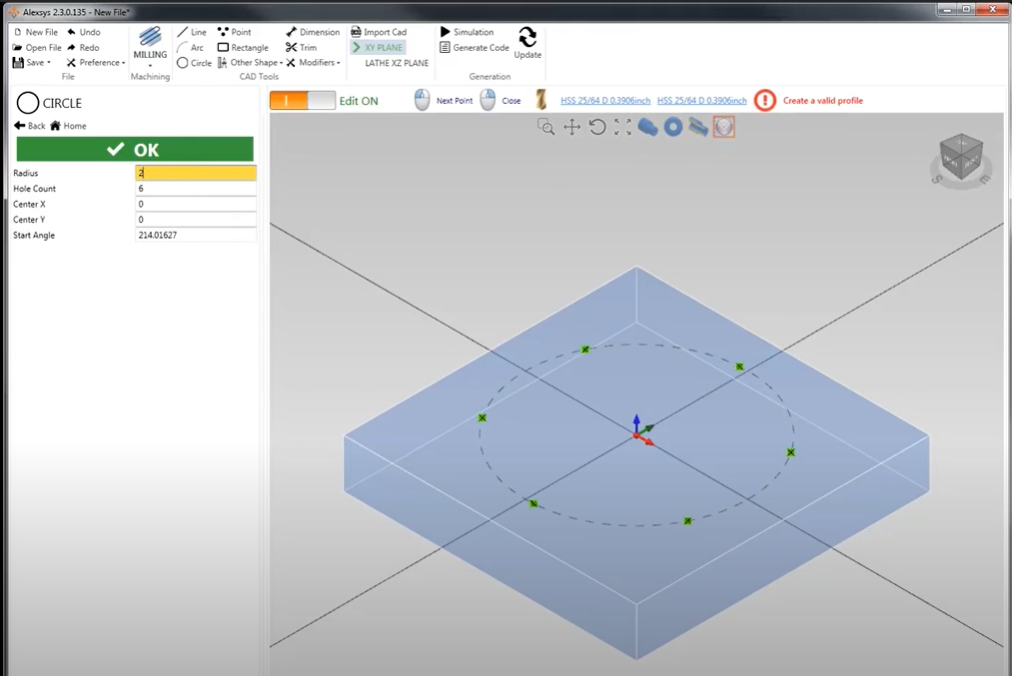
Define the drilling pattern and hole size.
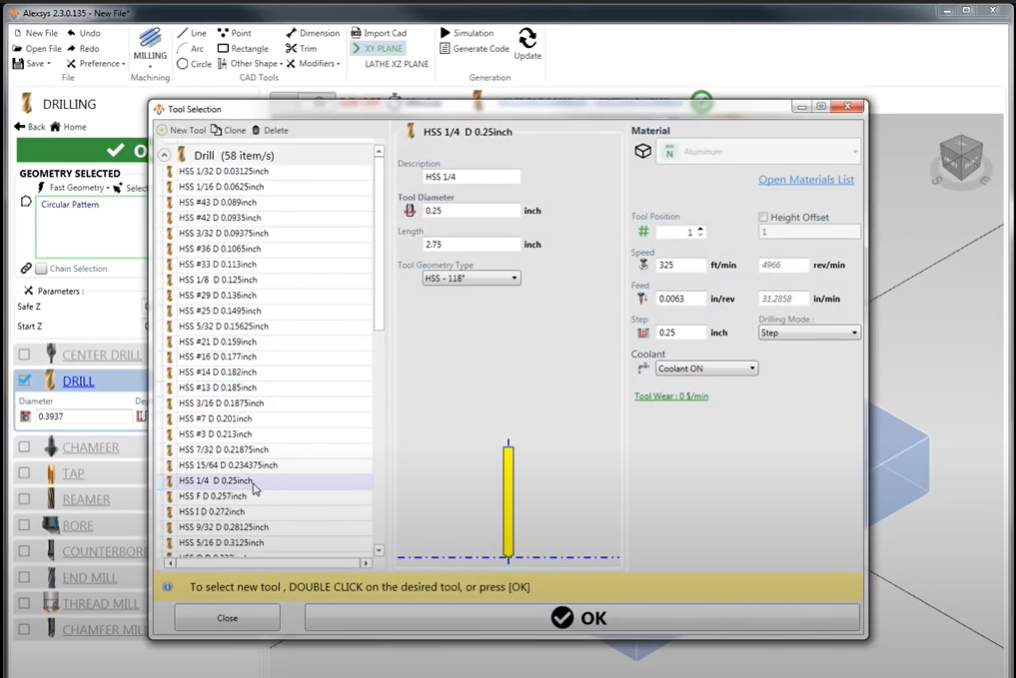
Choose the tool and specify how deep it should cut.
Use the simulation before cutting to verify the cycle.
Simulation gives you an opportunity to identify problems before the tool contacts the material.
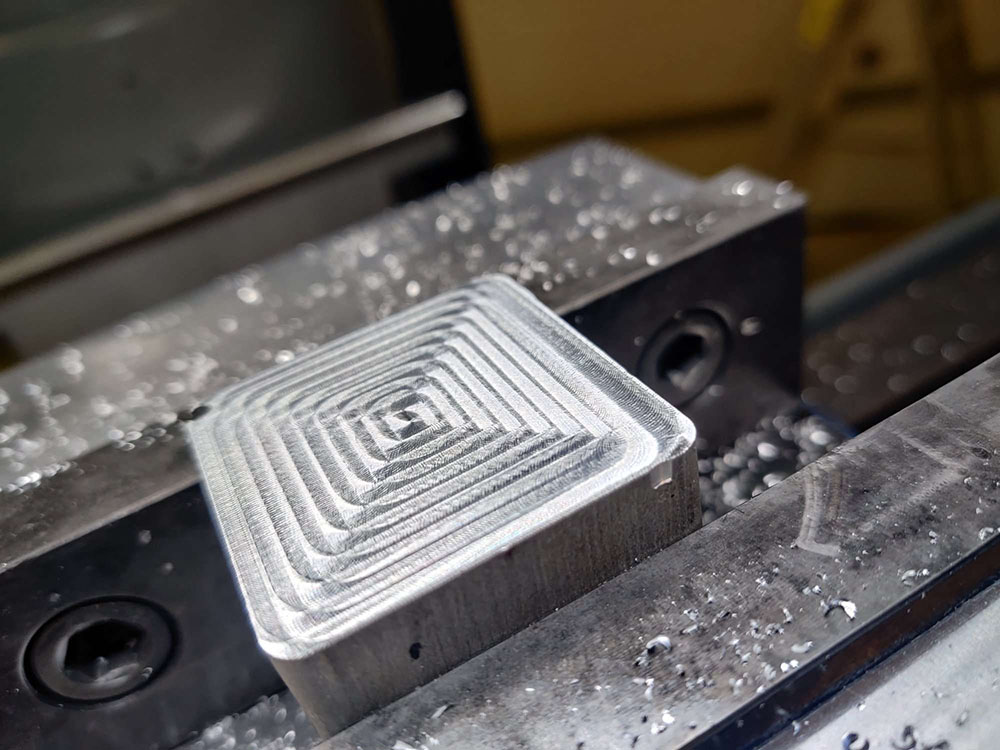
When the setup and simulation are verified, cut the part.
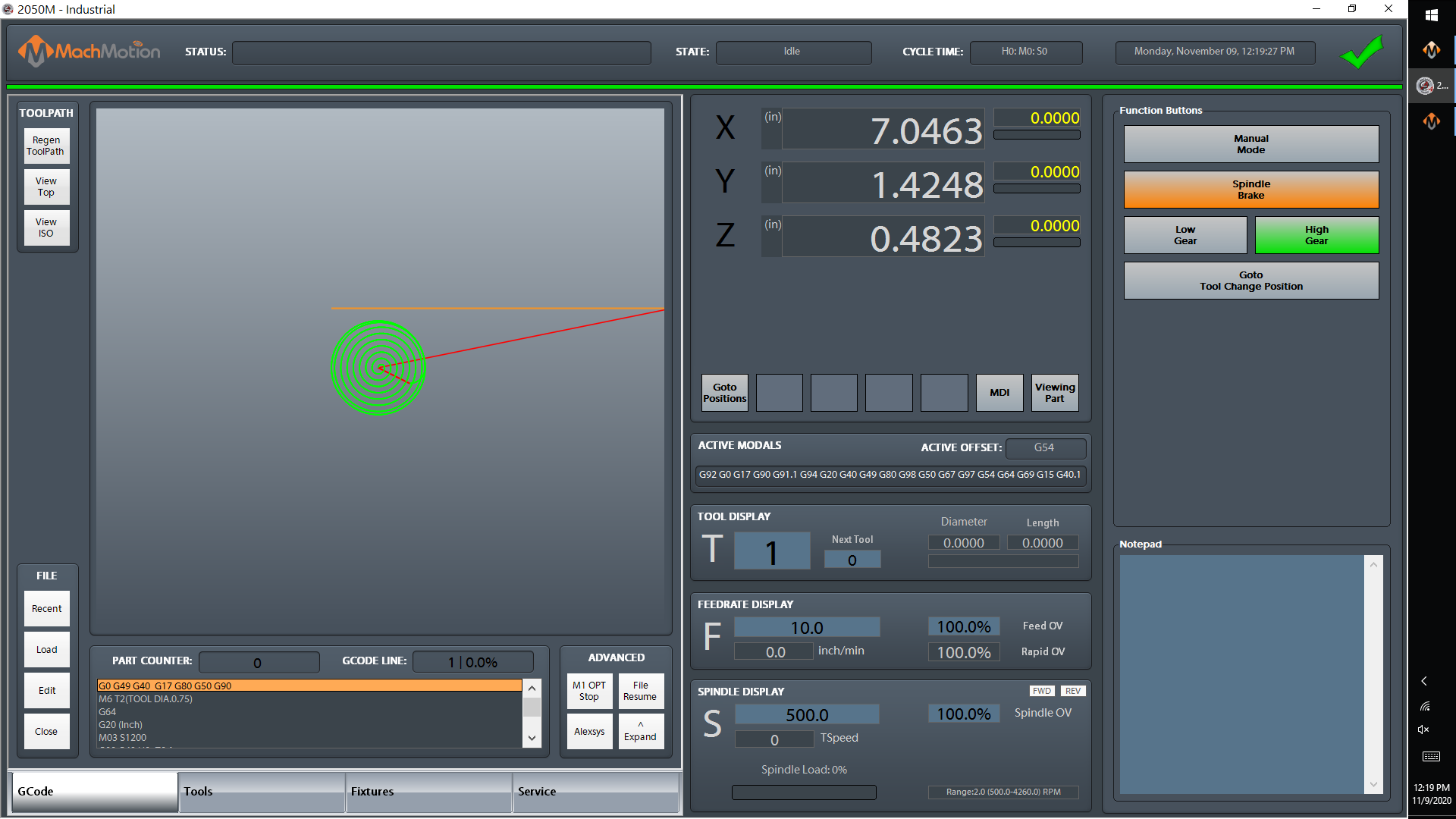
If you need to make a change, you can return to the conversational package without starting over.
This workflow lets you edit the part and resume the cutting process quickly.
Alexsys™ can add text directly to a part using a standard keyboard.
Alexsys™ supports a simple DXF drawing import workflow.
Alexsys™ is used to create and run conversational CNC milling programs. It combines conversational programming with visual CAD assistance so operators can create parts at the machine control.
Yes. You can choose from basic shape operations or draw your own geometry directly in Alexsys™.
Yes. For a drilling operation, enter the hole radius and the number of holes, then select the tool and drilling depth.
Yes. Use the simulation to verify tool clearance, confirm that the cycle works as planned, and review the estimated cycle time before cutting.
Yes. Return to the conversational package, make the changes, and return to the cutting workflow using the available shortcuts.
Yes. Type the message with a standard keyboard, then choose the font, location, and angle.
Yes. Open the DXF file, position it over the stock, add the cutting operation, and simulate the cycle before cutting.
The basic workflow is: set up stock, add an operation, enter the part information, select the tool and depth, simulate the part, and cut the part.
Questions about setting up Alexsys™ on your mill? Call (573) 368-7399 or email sales@machmotion.com.