Alexsys™
Alexsys™ is a conversational programming assistant for CNC turning machines. It combines the ease of classic conversational programming with the visual assistance of simple CAD, so you can create and verify turned parts directly at the CNC control.
Summary
To create a turned part in Alexsys™, select a standard lathe cycle, sketch the part profile from your blueprint, enter the final coordinates, simulate the toolpath, then touch off the part and press Cycle Start.
Have the following information ready:
Follow your standard shop safety procedures and verify the setup for your specific CNC lathe before cutting.
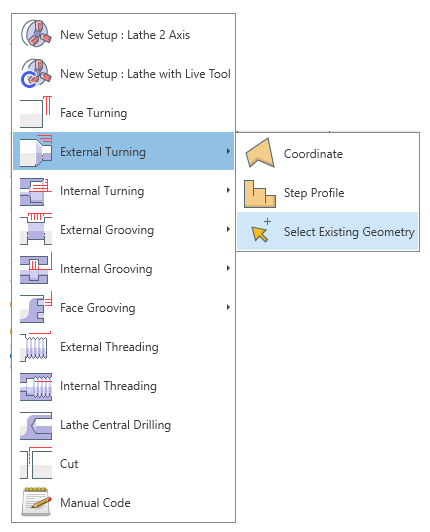
Start by choosing the machining cycle that matches the work you want to perform.
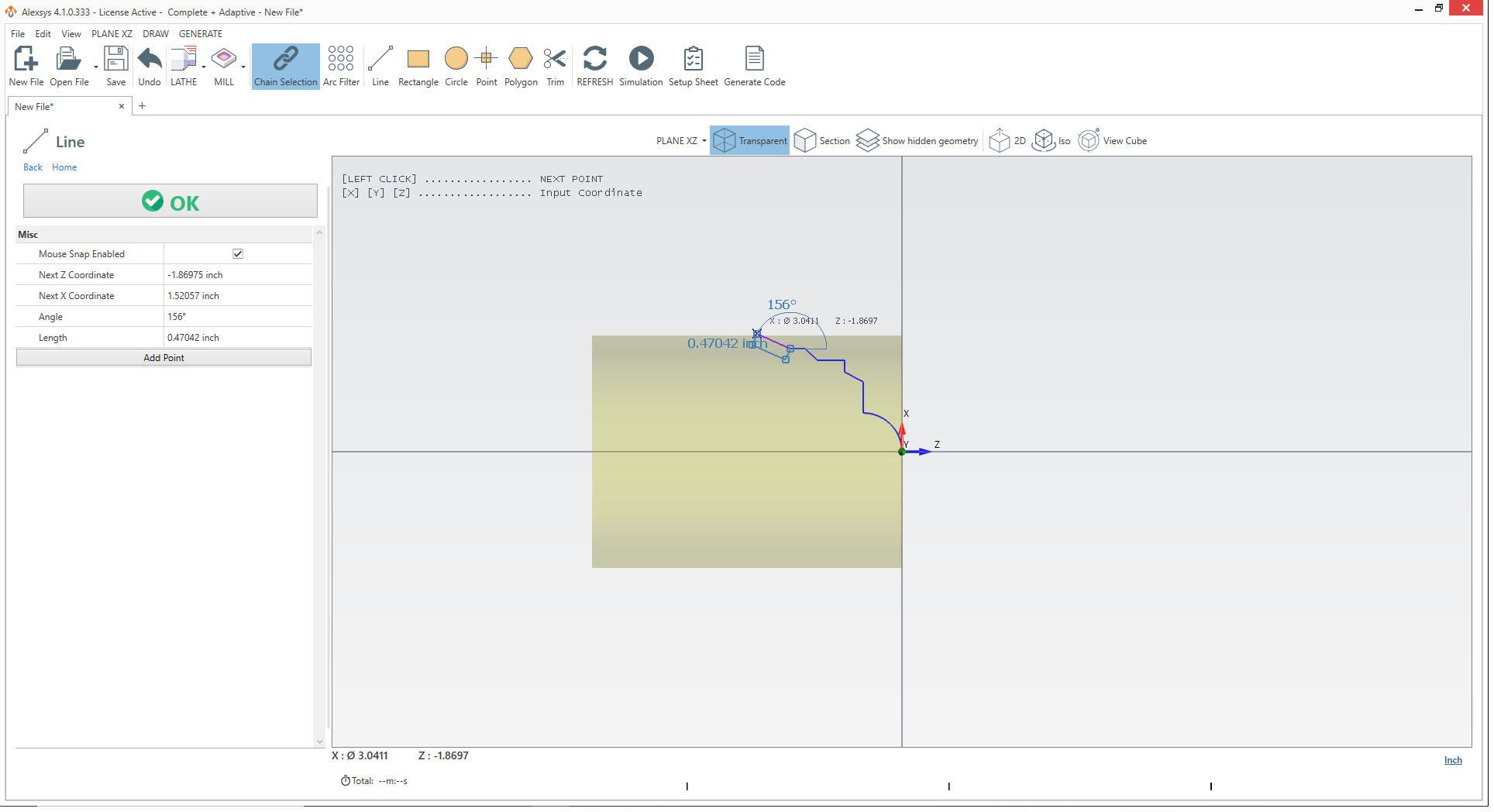
Create the part profile directly in the conversational package.
The visual profile helps you confirm the shape before you simulate the toolpath.
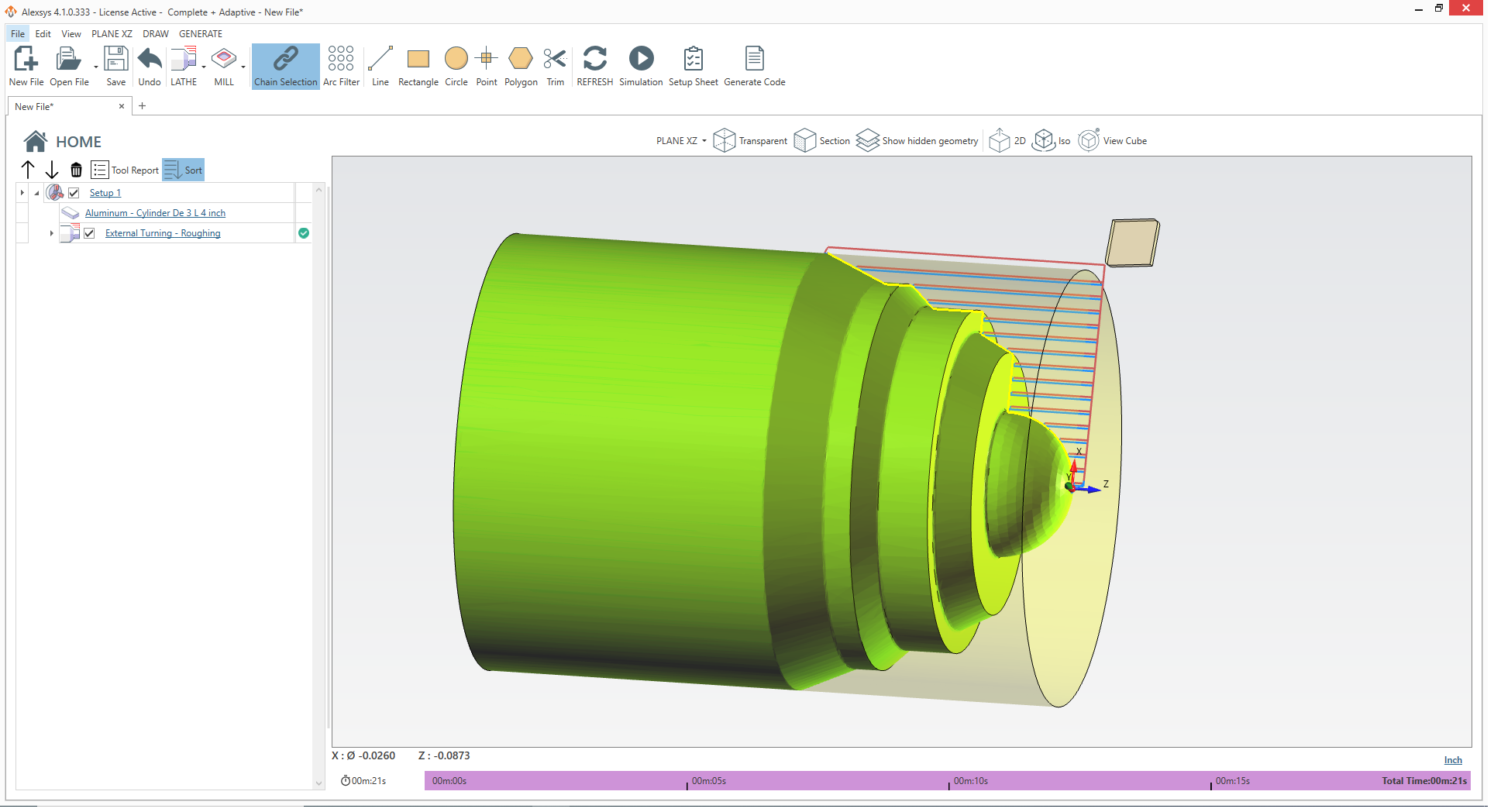
Use simulation to verify the planned tool movement before cutting.
Simulation helps you identify potential problems before the tool contacts the stock.
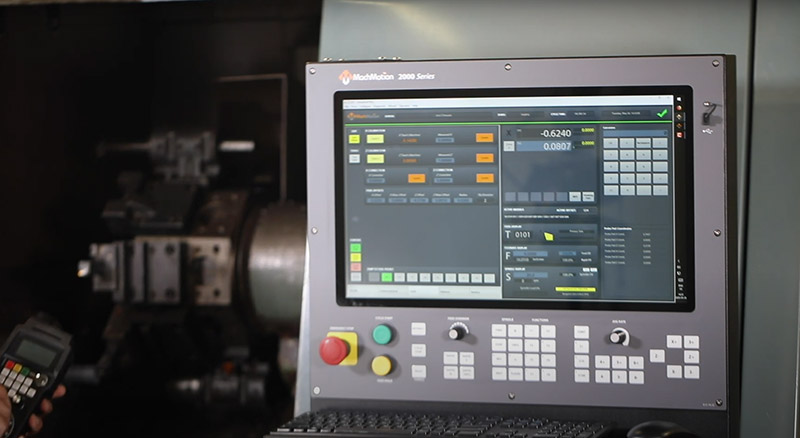
When the toolpath and setup are verified, cut the part.
Alexsys™ supports a simple drawing import workflow.
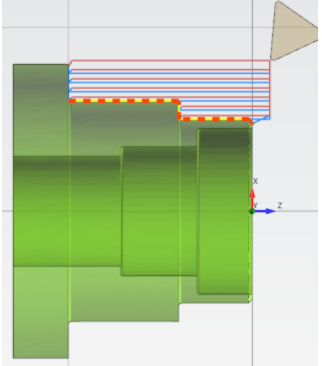
Alexsys™ Lathe is used to create and run conversational CNC turning programs. It combines conversational programming with visual CAD assistance so operators can create turned parts at the machine control.
Select the desired cycle from the list of standard lathe cycles, then confirm that it matches the machining work described in your blueprint.
Sketch the part profile while referencing your blueprint, then enter the final coordinates for the profile in Alexsys™.
Final coordinates define the completed part profile that Alexsys™ uses to create and simulate the turning toolpath.
Yes. Simulation lets you verify tool clearance, confirm that the cycle works as planned, and review the estimated cycle time before cutting.
After reviewing the simulated toolpath, touch off the part and press Cycle Start.
Yes. Open the drawing, position it over the stock, and add the cutting operation. Review and simulate the toolpath before cutting.
The basic workflow is: select a standard lathe cycle, sketch the part shape, enter the final coordinates, simulate the toolpath, and cut the part.
Questions about setting up Alexsys™ Lathe on your machine? Call (573) 368-7399 or email sales@machmotion.com.